- Open the Dante Via app
- Open the application (DVD, Website, PowerPoint etc.)
- Under Sources, click Enable Dante next to the app you want to use
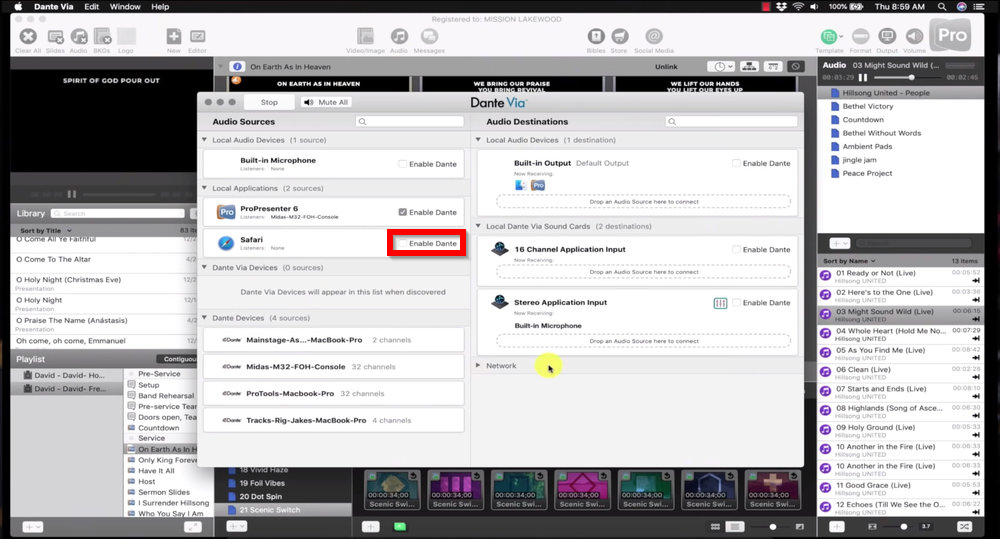
- You should be presented with a prompt to allow or deny VIA to use the audio. Press Allow
- If you don't receive this popup, close and reopen VIA. Make sure the prompt isn't covered by another window.
- Open Dante Controller
- Under Transmitters, expand TOLM iMAC
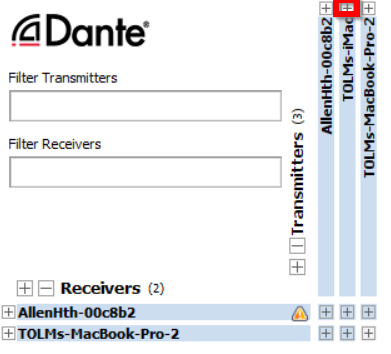
- Under Destinations, expand AllenHth...

- Check the boxes between the application Left and Right and AllenHth channel 53/54
- In this example, Prropresenter channel 15 and 16 are being sent to the board on channel 53 and 54. If your app only has one channel, assign it to both 53 and 54.
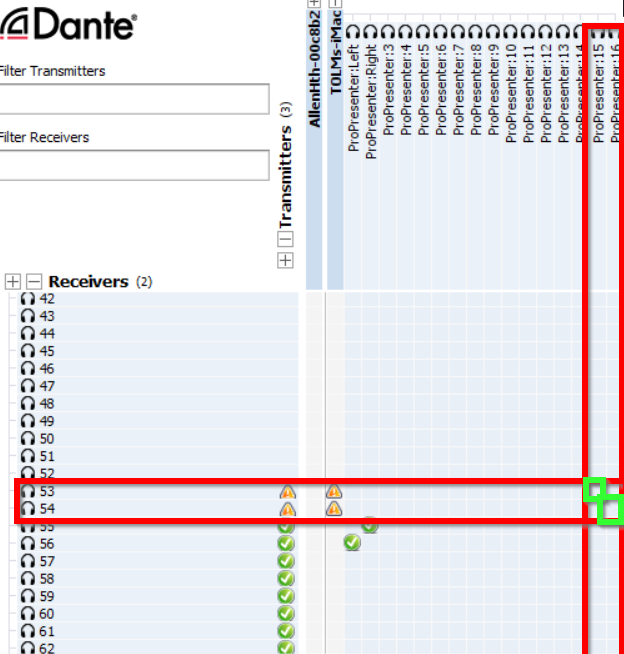
- Audio is now being routed to channel 89 on the DLIVE board
- In this example, Prropresenter channel 15 and 16 are being sent to the board on channel 53 and 54. If your app only has one channel, assign it to both 53 and 54.
Was this article helpful?
That’s Great!
Thank you for your feedback
Sorry! We couldn't be helpful
Thank you for your feedback
Feedback sent
We appreciate your effort and will try to fix the article