- Sign in at portal.office.com or at outlook.com
- You'll be prompted to set up your MFA
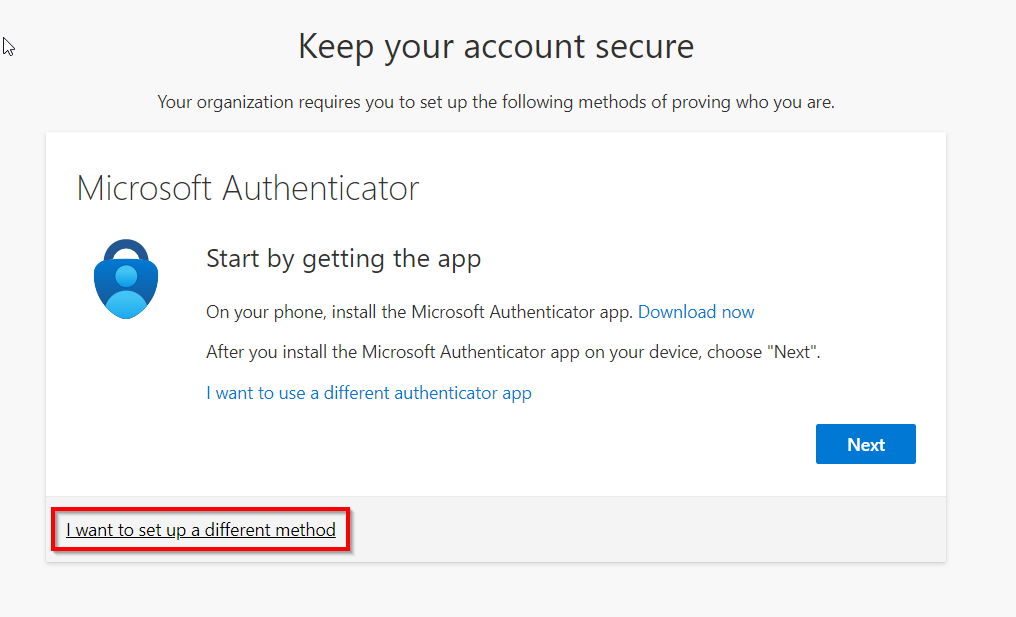
- By default, Microsoft will ask you to download an app for MFA. If you would rather receive a code texted to you, press I want to set up a different method
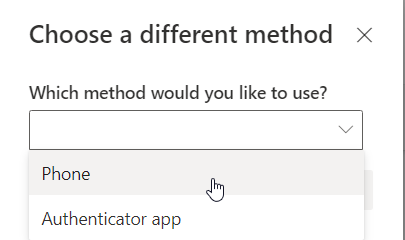
- Choose Phone and press continue
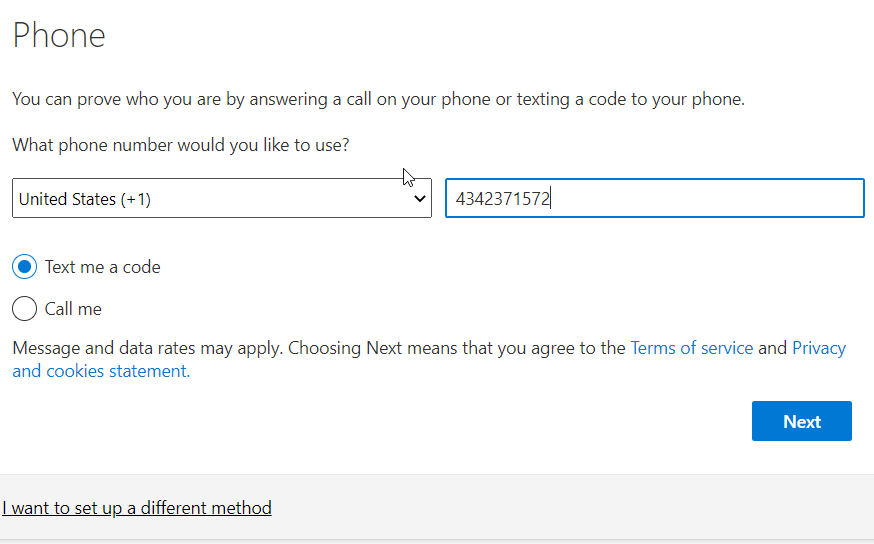
- Choose if you want a call or text and enter your phone number
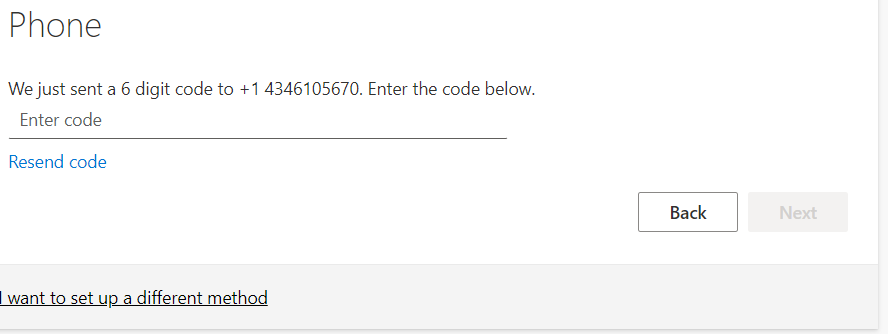
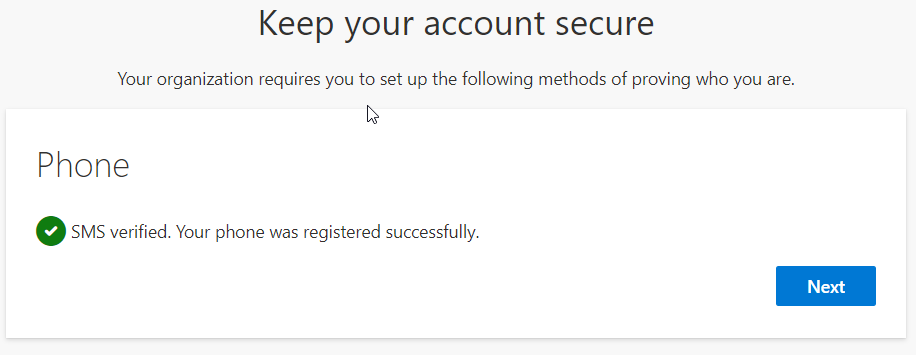
- Enter the code texted to your phone. Press Next
- Press Next
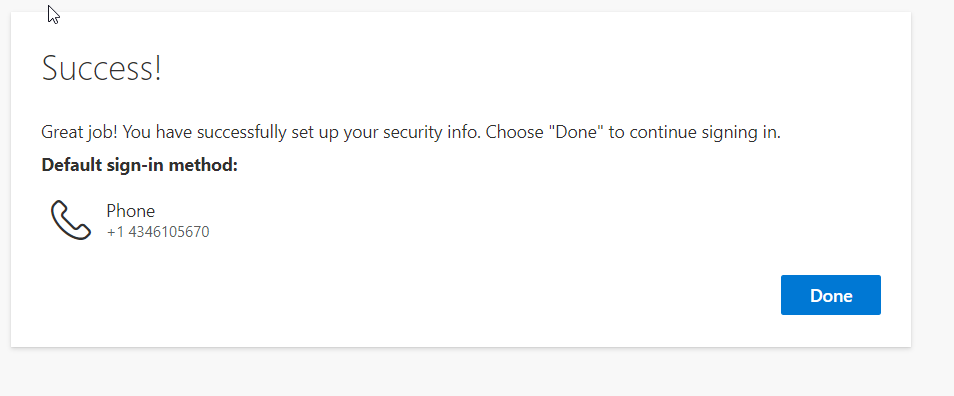
- Press Done
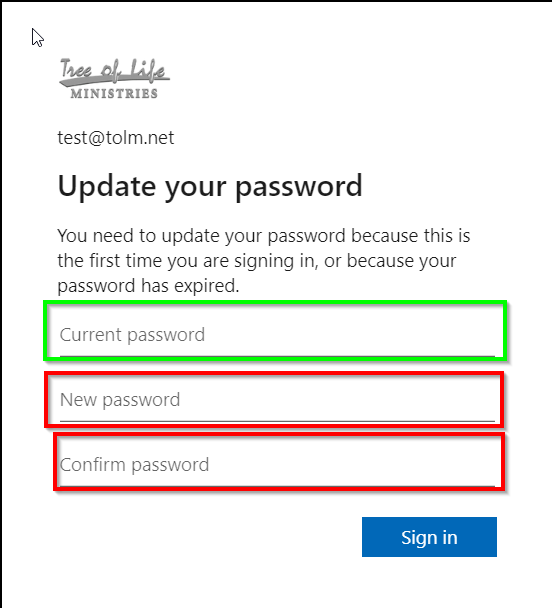
- Enter your old Password, then create your new password. Press Sign In
- Your new password must contain the following:
- An Uppercase letter
- A Lowercase letter
- A Number
- A symbol
- Your new password must contain the following:
Was this article helpful?
That’s Great!
Thank you for your feedback
Sorry! We couldn't be helpful
Thank you for your feedback
Feedback sent
We appreciate your effort and will try to fix the article