- Download Xerox Smart Start
- Install the program to your PC
- Use Xerox Experience to add the printer to your PC
- Once the program detects the printer, click, Quick Install
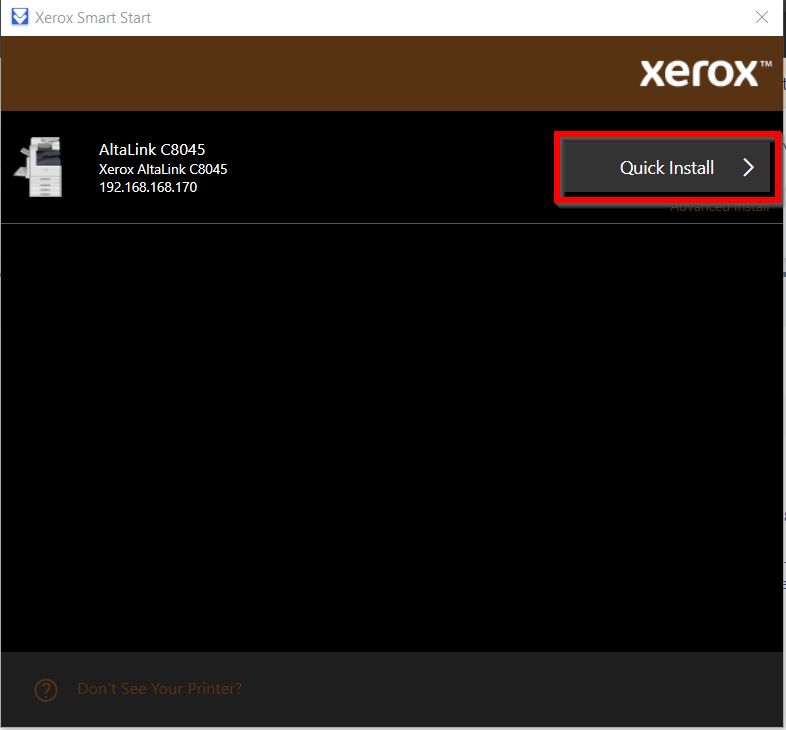
- If the printer doesn't display, click I don't see my printer in the bottom corner
- Enter the hostname of the printer
- Reception Office - PR-OFFICE-1
- Hallway Printer - PR-OFFICE-2
- School Printer - PR-SCHOOL-1
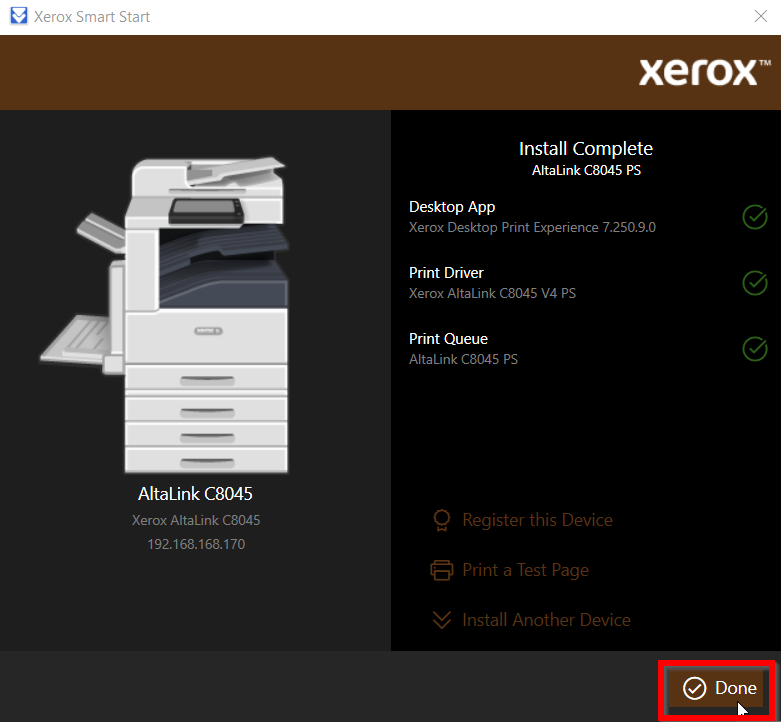
- Once the printer is added, select Done
Was this article helpful?
That’s Great!
Thank you for your feedback
Sorry! We couldn't be helpful
Thank you for your feedback
Feedback sent
We appreciate your effort and will try to fix the article